
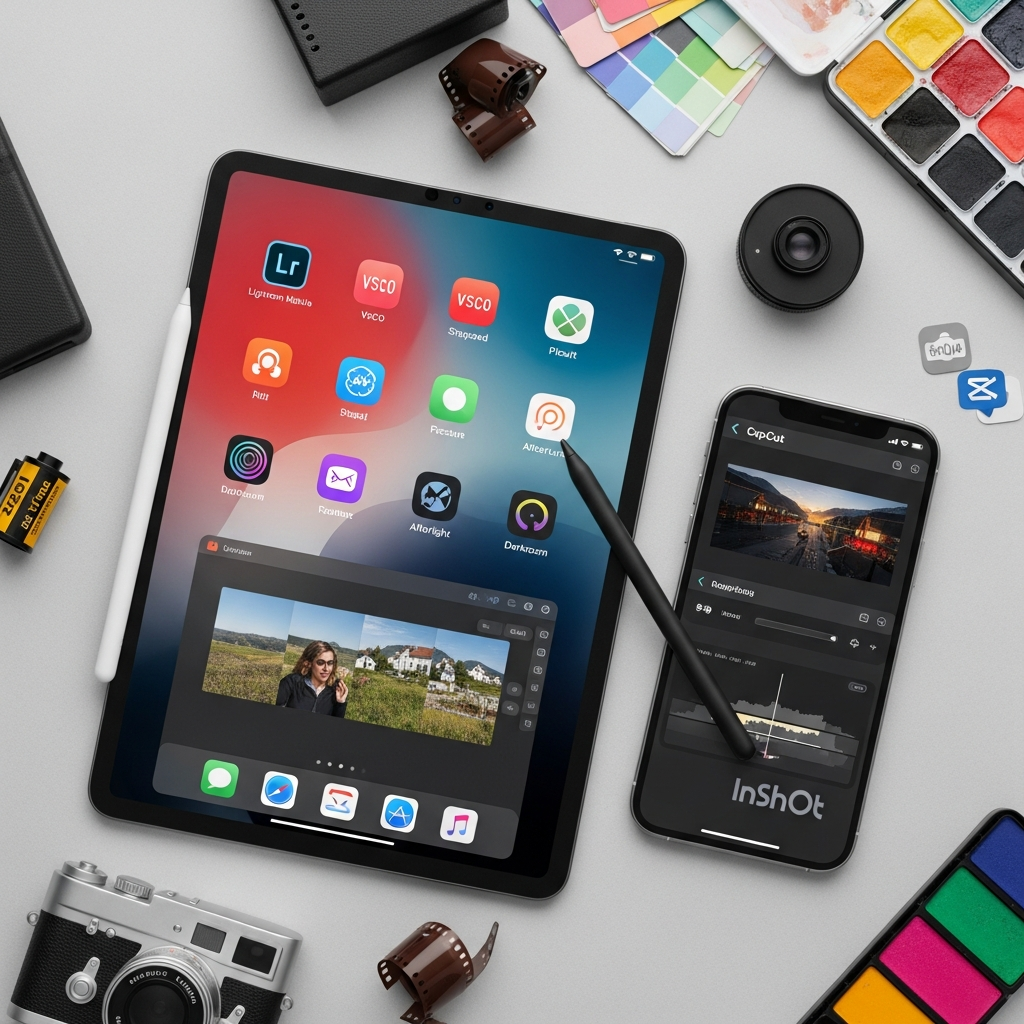

Your iPhone already takes stunning photos. The cameras in modern iPhones rival professional equipment, capturing incredible detail, dynamic range, and color accuracy. But the journey from a good photo to a great one happens in the editing process—and that’s where most people struggle.
The App Store contains thousands of photo editing apps, each promising to transform your images with “one tap” or “professional results.” Some deliver on these promises. Most don’t. Sorting through mediocre filters and confusing interfaces to find truly powerful editing tools wastes time and often money on subscriptions you’ll never fully use.
This comprehensive guide reveals the top iOS apps for photo editing in 2025—the ones professional photographers, Instagram influencers, and everyday users actually rely on. You’ll discover which apps excel at specific tasks, from basic adjustments to advanced retouching, from creative filters to AI-powered enhancements. Whether you’re editing vacation photos, building a social media presence, or pursuing photography seriously, these apps will elevate your iPhone photography to the next level.
Key Takeaways:
- Different editing apps excel at different tasks—no single app does everything best
- Free apps can deliver professional results when you know which features to use
- AI-powered editing has transformed mobile photo editing in 2025
- Building a small collection of specialized apps works better than relying on one do-it-all solution
Why Mobile Photo Editing Matters More Than Ever
The days of transferring photos to computers for editing are over for most users. Modern iOS photo editing apps rival desktop software in capability while offering the convenience of editing anywhere, anytime.
Social media’s dominance means photos get shared immediately, often within minutes of capture. The ability to edit quickly on your iPhone—adjusting exposure while still at the location, cropping for Instagram before the moment passes—has become essential rather than optional.
Professional photographers increasingly use iOS apps for quick edits, client previews, and even final deliverables for certain projects. The technology has matured to where mobile editing isn’t a compromise—it’s often the most efficient workflow.
Best All-Around Photo Editing Apps
Adobe Lightroom Mobile
Adobe Lightroom Mobile stands as the most comprehensive editing app available on iOS. It brings professional desktop editing power to your iPhone with intuitive touch-based controls that somehow feel more natural than desktop sliders.
The app excels at non-destructive editing, meaning you can always revert to the original. Its powerful adjustment tools include exposure, contrast, highlights, shadows, white balance, tone curves, and selective adjustments. The color grading tools rival desktop software, offering precise control over hues, saturation, and luminance.
Key features that set Lightroom apart:
- Automatic syncing across devices via Adobe Creative Cloud
- Professional-grade RAW file editing support
- Preset system for consistent editing across photo series
- Advanced masking tools for selective adjustments
- Built-in camera with professional controls
The free version provides substantial functionality. Adobe’s Creative Cloud Photography plan ($9.99/month) unlocks premium features like healing brush, geometry tools, and cloud storage—worthwhile for serious users.
Snapseed
For users wanting professional editing power completely free, Snapseed delivers remarkably. Developed by Google, it offers an impressive array of tools including selective adjustments, healing brush, perspective correction, and over 29 distinct editing tools.
The selective adjust feature lets you place control points on your image, adjusting brightness, contrast, and saturation in specific areas without complex masking. The healing tool removes unwanted objects convincingly, while perspective correction fixes architectural distortion.
Snapseed’s strength lies in its combination of power and accessibility. The interface guides you through edits logically, making advanced techniques approachable for beginners while satisfying experienced editors with granular control.
Best AI-Powered Editing Apps
Photoleap (formerly Enlight)
Photoleap harnesses AI to simplify complex editing tasks that once required extensive skill. Its AI-powered tools include background removal, sky replacement, object removal, and style transfer—all executed with impressive accuracy.
The generative fill feature fills in missing areas of your photos intelligently, useful when extending backgrounds or removing large objects. The AI enhance analyzes your photo and applies optimal adjustments automatically, serving as either a starting point or a complete edit for casual users.
Photoleap also includes traditional editing tools, blending modes, and layer support for users wanting manual control. The subscription ($7.99/month or $39.99/yearly) unlocks full functionality after a limited free trial.
Pixelmator Photo
Pixelmator Photo combines machine learning with traditional editing in an elegant, iPad-optimized interface that works beautifully on iPhone too. Its ML Enhance feature analyzes photos and applies adjustments that often nail the perfect look instantly.
The app includes color adjustments that professionals appreciate—curves, levels, selective color, and channel mixer. For portraits, the ML Retouch intelligently smooths skin while preserving natural texture, avoiding the artificial plastic look of aggressive beautification filters.
At $7.99 as a one-time purchase with no subscription, Pixelmator Photo offers exceptional value for users wanting professional tools without recurring fees.
Best Apps for Portraits and Selfies
Facetune
Facetune dominates portrait editing with tools specifically designed for facial retouching. While sometimes criticized for enabling unrealistic beauty standards, when used subtly, it produces natural-looking improvements to portrait photos.
The app includes skin smoothing that maintains texture, teeth whitening, eye enhancement, blemish removal, and facial reshaping tools. The key is restraint—subtle adjustments enhance rather than transform.
Recent updates added AI-powered features like automatic background replacement and hair color changes. Facetune costs $7.99 monthly or $35.99 annually after a free trial, with a cheaper “Facetune2” version offering slightly fewer features.
AirBrush
For users wanting similar portrait enhancement without Facetune’s price tag, AirBrush provides excellent free functionality. It includes skin smoothing, blemish removal, teeth whitening, and eye enhancement without watermarks in the free version.
The interface is simpler than Facetune, which actually benefits casual users who want quick improvements without learning complex tools. Premium features ($3.99/month) add advanced retouching and filters but aren’t necessary for basic portrait editing.
Best Apps for Creative Effects and Filters
VSCO
VSCO built its reputation on film-inspired presets that add character without looking artificial. The app’s filters emulate classic film stocks, providing warmth, grain, and color shifts that digital photos often lack.
Beyond presets, VSCO includes robust manual editing tools for exposure, temperature, tint, skin tone, and more. The recipe feature lets you save and share your custom editing formulas, ensuring consistency across your photo collection.
VSCO membership ($29.99/yearly) unlocks the complete preset library and advanced editing tools. The free version provides enough presets and tools to satisfy many users, making it worth trying before subscribing.
Darkroom
Darkroom emphasizes speed and efficiency with a streamlined interface that doesn’t sacrifice power. It’s particularly popular among users who edit large batches of photos regularly, offering excellent organizational tools alongside editing capabilities.
The app supports RAW editing, includes professional curves and color tools, and offers beautiful presets. Its batch editing capability applies the same adjustments across multiple photos simultaneously—perfect for event photography or maintaining consistent Instagram aesthetics.
Darkroom’s pricing is flexible: free with limitations, $4.99/month, or $49.99/year for unlimited access. A one-time unlock ($39.99) is also available—unusual and appreciated in today’s subscription-heavy landscape.
Best Apps for Specific Tasks
TouchRetouch
TouchRetouch does one thing exceptionally well: removing unwanted objects from photos. Whether it’s a photobomber in the background, power lines ruining a landscape, or a trash can in your architectural shot, TouchRetouch erases them convincingly.
The app uses intelligent algorithms to fill in removed areas, analyzing surrounding pixels to create seamless results. It’s remarkably effective on complex backgrounds, though like all content-aware fill tools, it occasionally requires multiple attempts on difficult areas.
At $1.99 as a one-time purchase, TouchRetouch is an essential specialized tool that complements more comprehensive editing apps. Keep it in your toolkit for those specific situations where it’s invaluable.
Afterlight
Afterlight balances simplicity with capability, making it ideal for users who find apps like Lightroom overwhelming but want more than Instagram’s basic filters. It includes 130+ filters, textures, overlays, and dust effects for creative additions.
The film grain and light leak effects add analog character to digital photos, popular for creating vintage or nostalgic aesthetics. Standard adjustment tools cover basics competently, though advanced users might find them limiting compared to Lightroom or Snapseed.
Afterlight costs $2.99 with no subscription—refreshingly straightforward pricing for capable casual editing.
Building Your Photo Editing Toolkit
You don’t need every app mentioned here. Most users benefit from this essential combination:
Core editing: Adobe Lightroom Mobile or Snapseed for comprehensive adjustments Portrait enhancement: Facetune or AirBrush for facial retouching Creative filters: VSCO for film-inspired looks Specialized removal: TouchRetouch for object removal
This four-app toolkit covers virtually all editing scenarios without overwhelming your iPhone or your budget. Start with the free options (Snapseed, AirBrush) and invest in paid apps only when specific needs justify the cost.
Photo Editing Workflow Tips
Regardless of which apps you choose, following a logical editing workflow produces better results than randomly adjusting sliders:
1. Start with basic adjustments: Correct exposure, contrast, highlights, and shadows first 2. Refine color: Adjust white balance, vibrance, and saturation 3. Apply selective edits: Brighten faces, darken skies, or adjust specific areas 4. Add creative effects: Apply presets, filters, or stylistic touches 5. Final polish: Sharpen, add grain, crop, and straighten
This order prevents wasted effort and ensures each adjustment builds logically on previous ones. Many apps (especially Lightroom and Snapseed) organize tools in this workflow sequence.
Export at maximum quality when saving edited photos. Most apps default to compressed exports to save storage, but this degrades image quality. Change settings to save at 100% quality for photos you care about.
Avoiding Common Editing Mistakes
Even powerful apps can’t fix poor editing judgment. Avoid these common pitfalls:
Over-saturation: Cranking vibrance and saturation creates unnatural, cartoonish images. Subtle adjustments look more professional.
Excessive HDR effects: The “HDR look” with glowing edges and unnatural contrast dates photos badly. If using HDR features, dial them back significantly.
Oversharpening: Aggressive sharpening creates halos and artifacts. Zoom to 100% when sharpening to see actual effects.
Inconsistent editing: If building a portfolio or Instagram feed, maintain consistent editing style. Save presets or recipes to ensure cohesion.
Ignoring composition: No amount of editing fixes poor composition. Crop thoughtfully and straighten horizons before diving into adjustments.
Conclusion
The iOS photo editing landscape in 2025 offers unprecedented power and accessibility. From free powerhouses like Snapseed to professional solutions like Lightroom Mobile, from AI-driven magic in Photoleap to specialized tools like TouchRetouch, these apps transform iPhones into complete mobile photography studios.
Your perfect editing setup depends on your specific needs, but starting with versatile tools like Snapseed or Lightroom Mobile provides a strong foundation. Add specialized apps as particular needs emerge—portrait retouching, creative filters, or object removal.
Remember that apps are tools, not magic solutions. The best editing enhances good photos rather than attempting to rescue poor ones. Combine these powerful iOS apps with improved photography fundamentals, and you’ll create images that stand out in today’s crowded visual landscape.
Download a few of these apps today, experiment with their tools, and discover which combinations work best for your style. Your iPhone’s camera is already excellent—now you have the software to make your photos truly exceptional.
Frequently Asked Questions
Do I need to pay for editing apps, or are free options good enough?
Free apps like Snapseed deliver professional-quality results that satisfy most users’ needs. They include advanced tools like selective adjustments, healing brushes, and perspective correction without cost. However, paid apps like Adobe Lightroom Mobile offer additional features like cloud syncing across devices, RAW editing, and advanced masking that justify subscriptions for serious photographers. Start with free options and upgrade only when you identify specific features you’re missing. Many users never need paid apps at all.
Will editing photos on my iPhone reduce their quality?
Editing itself doesn’t reduce quality if done properly. Most professional editing apps use non-destructive editing, preserving original image data. Quality loss occurs during export if you choose compressed formats or low-quality settings. Always export at maximum quality (usually 100% or “High” in app settings) for photos you care about. The iPhone’s processing power handles editing without degradation—the final image quality depends entirely on export settings you choose.
Can iPhone editing apps really match desktop software like Photoshop?
For most tasks, yes. Apps like Lightroom Mobile and Photoleap include tools that rival desktop counterparts—adjustment layers, selective masking, healing tools, and precise color grading. Professional photographers regularly deliver client work edited entirely on iPads and iPhones. However, desktop software still excels at complex compositing, extensive retouching, and batch processing large volumes. For individual photo editing, social media content, and even professional portfolios, iOS apps provide completely adequate—often superior—workflows.
How many editing apps should I have on my iPhone?
Three to five specialized apps cover most needs without cluttering your phone. Maintain one comprehensive editing app (Lightroom or Snapseed), one creative filter app (VSCO or Darkroom), and one specialized tool (TouchRetouch or Facetune) based on your photography style. Having too many apps creates decision paralysis and inconsistent editing styles. Master a few excellent apps rather than superficially using dozens. This focused approach produces better results and more efficient workflows than constantly switching between numerous similar apps.