
Is your once-speedy computer now crawling along like it’s stuck in quicksand? You’re not alone. Over time, every Windows PC accumulates digital clutter, unnecessary processes, and resource-hogging programs that gradually drain performance. What once booted in seconds now takes minutes. Applications that opened instantly now stutter and freeze.
The good news? You don’t need to buy a new computer or expensive optimization software. Free programs exist that can restore your PC’s speed and responsiveness, often returning it to near-original performance levels. These tools clean out digital junk, manage system resources intelligently, and optimize settings that Windows leaves inefficient by default.
This guide reveals the best free PC programs for faster performance that actually work. You’ll discover proven tools used by tech professionals to breathe new life into sluggish computers, eliminate bottlenecks, and maximize every ounce of processing power. Whether your PC is slightly slow or painfully sluggish, these programs will help you reclaim lost speed without spending a dime.
Understanding Why PCs Slow Down
Before diving into solutions, understanding the problem helps you maintain performance long-term. PCs slow down gradually due to several factors that compound over time.
Temporary file accumulation is the primary culprit. Windows and applications constantly create temporary files that should be deleted but often aren’t. Over months and years, gigabytes of digital waste accumulate, consuming storage space and cluttering system operations.
Startup program bloat means your PC loads dozens of unnecessary programs every time it boots. Each program consumes memory and processing power, extending boot times and reducing available resources for applications you actually use.
Fragmented storage, outdated drivers, and registry errors further degrade performance. Hard drives (not SSDs) become fragmented as files scatter across the disk. Outdated drivers prevent hardware from operating efficiently. The Windows registry accumulates broken entries that slow system operations.
The programs below address these specific issues, providing targeted solutions rather than vague “optimization.”
Essential System Cleaning Tools
CCleaner
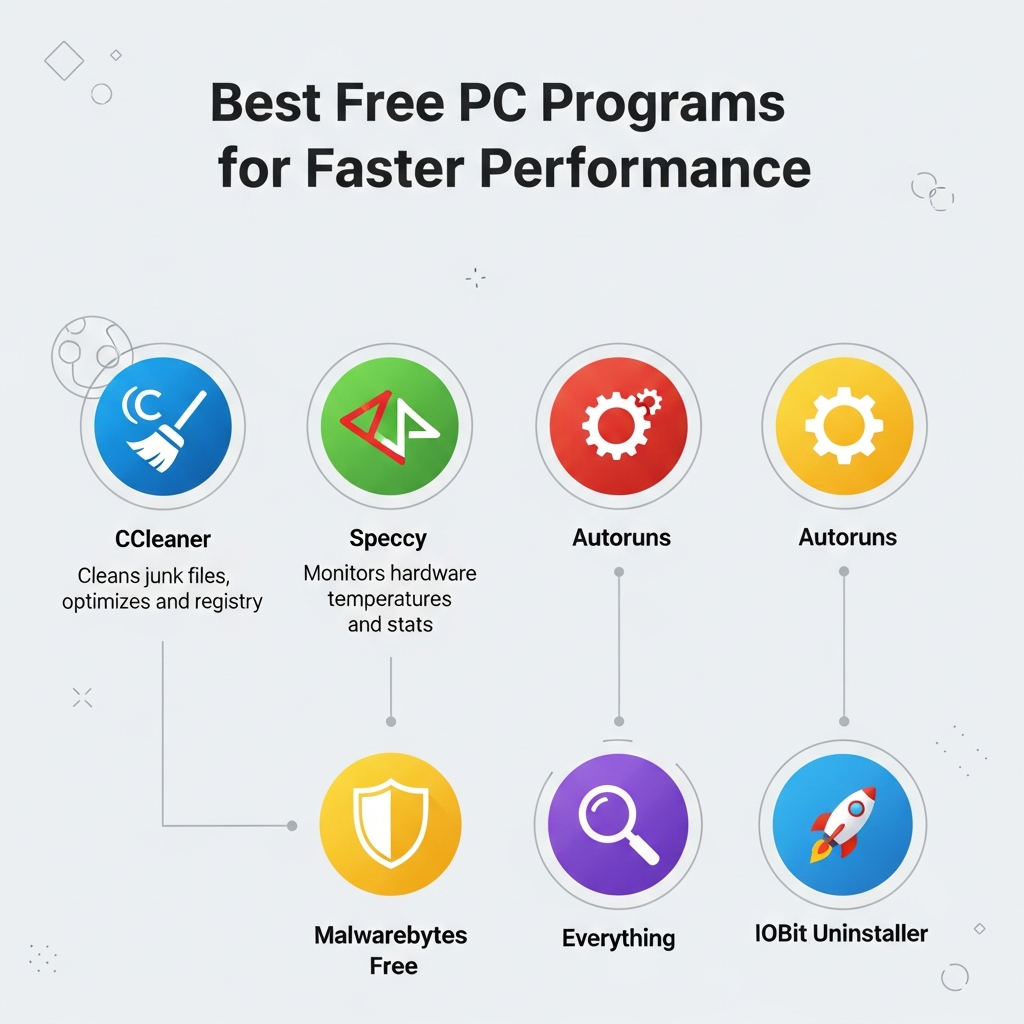
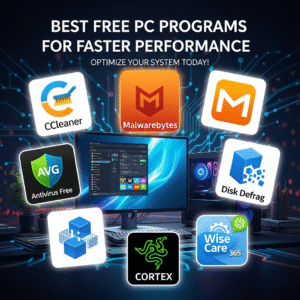
CCleaner remains the gold standard for system cleaning, trusted by millions of users worldwide. It removes temporary files, browser caches, download histories, and other digital clutter that accumulates during normal computer use.
The program scans your system in seconds and safely deletes unnecessary files, often freeing several gigabytes of storage space. Beyond cleaning, CCleaner manages startup programs, allowing you to disable applications that slow boot times unnecessarily.
How to use CCleaner effectively:
- Download from the official CCleaner website only (avoid third-party download sites)
- Run the “Health Check” for automated cleaning
- Use the “Tools” section to manage startup programs—disable anything you don’t recognize or need immediately at startup
- Run CCleaner monthly to maintain system cleanliness
The free version provides all essential features. Ignore upselling for the paid version unless you want automatic scheduling and priority support.
BleachBit
For users wanting an open-source alternative to CCleaner, BleachBit offers similar functionality with complete transparency. It cleans system junk, application caches, and securely deletes files you want permanently removed.
BleachBit is particularly thorough with browser cleaning, supporting dozens of web browsers and removing tracking cookies, form history, and cached files. It’s also popular among privacy-conscious users for its secure deletion features.
The interface is less polished than CCleaner, but functionality is excellent. It’s completely free without any upselling or premium versions.
Startup and Process Management
Autoruns
Autoruns, developed by Microsoft’s Sysinternals team, provides the most comprehensive view of everything that launches automatically on your PC. It reveals startup programs, scheduled tasks, browser extensions, and system services—many invisible to standard Windows tools.
This program is powerful but requires caution. It shows system-critical processes alongside unnecessary ones. The key is disabling only programs you recognize as non-essential, like Adobe updaters, messaging app auto-starters, or manufacturer bloatware.
Safe approach to using Autoruns:
- Focus on the “Logon” and “Scheduled Tasks” tabs first
- Disable (don’t delete) unknown items so you can re-enable if problems occur
- Research unfamiliar entries online before disabling
- Leave anything labeled “Microsoft Corporation” alone unless you’re certain it’s unnecessary
Even disabling 5-10 unnecessary startup items can shave 30-60 seconds off boot time and free significant memory.
Process Lasso
Process Lasso goes beyond simple process management by intelligently managing CPU resources. Its ProBalance technology prevents individual processes from hogging your processor, ensuring your system remains responsive even under heavy load.
Have you experienced situations where one program freezes your entire computer? Process Lasso prevents this by automatically adjusting process priorities, keeping your system usable even when a background task consumes significant resources.
The free version includes ProBalance and basic process management—sufficient for most users. It runs quietly in the background, intervening only when needed to maintain system responsiveness.
Disk Optimization Tools
Defraggler
For users still running traditional hard drives (not SSDs), Defraggler optimizes file placement for faster access. Unlike Windows’ built-in defragmenter, Defraggler lets you defragment specific files or folders rather than entire drives.
Important note: Do not defragment SSDs—it provides no benefit and reduces drive lifespan. Use Defraggler only for traditional mechanical hard drives.
The program visualizes drive fragmentation with color-coded maps, showing exactly where optimization is needed. Schedule weekly defragmentation for mechanical drives to maintain peak performance.
WinDirStat
WinDirStat doesn’t directly improve performance but identifies what’s consuming your storage space. It scans drives and displays a visual treemap showing file and folder sizes proportionally.
Low disk space directly impacts performance, especially on system drives. WinDirStat helps identify forgotten downloads, duplicate files, or unexpectedly large folders consuming valuable space.
Delete unnecessary files it reveals, freeing space for Windows to operate efficiently. Many users discover tens of gigabytes of forgotten files they can safely remove.
Driver and System Updates
Snappy Driver Installer
Outdated drivers prevent hardware from operating efficiently, causing performance bottlenecks and system instability. Snappy Driver Installer finds and installs missing or outdated drivers completely free—no subscription required.
Unlike many “driver updater” programs that are actually malware or scams, Snappy Driver Installer is open-source and safe. It downloads drivers directly from official sources without bundled software or hidden costs.
Using Snappy Driver Installer safely:
- Download from the official website or SourceForge
- Choose “Lite” version for smaller initial download
- Review driver changes before installing—don’t blindly update everything
- Create a system restore point before updating drivers
Focus particularly on graphics card, chipset, and network adapter drivers—these most significantly impact performance.
Memory and Resource Optimization
Wise Memory Optimizer
Wise Memory Optimizer frees up RAM being unnecessarily held by closed programs. Windows sometimes fails to properly release memory, leaving it allocated but unused. This tool reclaims that memory with one click.
While modern Windows manages memory reasonably well, manual optimization helps on systems with limited RAM (8GB or less) or when running memory-intensive applications.
Run it when your system feels sluggish or before launching demanding programs. It’s lightweight, free, and takes seconds to improve available memory.
Razer Cortex (Game Booster)
Despite its gaming-focused branding, Razer Cortex benefits all users by temporarily disabling unnecessary background processes and services when you need maximum performance.
Launch it before running demanding applications—video editing, 3D modeling, or yes, gaming—to free system resources. It automatically re-enables processes when you’re done, ensuring system functionality isn’t permanently affected.
The “System Booster” feature combines several optimization tasks into one-click convenience, making it perfect for less technical users.
Browser Optimization
Browsers often become performance bottlenecks, consuming gigabytes of RAM with dozens of tabs. While not traditional “PC programs,” browser extensions directly impact system performance.
Essential browser optimization tips:
- Use The Great Suspender (Chrome/Edge) or Auto Tab Discard (Firefox) to suspend inactive tabs, freeing memory
- Install uBlock Origin to block resource-heavy ads and trackers
- Regularly clear browser cache and cookies using built-in tools or CCleaner
- Limit active extensions to only those you regularly use
Browser optimization alone can free 2-4GB of RAM on systems with many tabs open, dramatically improving responsiveness.
Creating a Maintenance Routine
The most effective approach combines these tools into a regular maintenance schedule:
Weekly tasks:
- Run CCleaner or BleachBit to remove temporary files
- Use Wise Memory Optimizer if system feels sluggish
Monthly tasks:
- Review and adjust startup programs using Autoruns
- Defragment mechanical hard drives with Defraggler
- Check for driver updates with Snappy Driver Installer
Quarterly tasks:
- Use WinDirStat to identify and remove unnecessary files
- Reassess which programs you actually use and uninstall the rest
This routine maintains peak performance without requiring daily attention. Set calendar reminders to ensure consistency.
Avoiding Performance Software Scams
The PC optimization market is flooded with scams and malware disguised as performance tools. Avoid programs that:
- Promise to “fix” hundreds of registry errors (registry cleaners rarely improve performance)
- Require payment to “unlock” critical fixes they’ve supposedly found
- Display alarming warnings about system health without basis
- Come bundled with toolbars, browser hijackers, or unwanted software
- Have aggressive advertising or pop-ups
Stick with the established, reputable programs mentioned in this guide. If something seems too good to be true, it probably is. Legitimate optimization requires targeted, specific tools—not miracle solutions.
Conclusion
Restoring your PC’s performance doesn’t require expensive software or hardware upgrades. The free programs covered here—CCleaner for cleaning, Autoruns for startup management, Snappy Driver Installer for driver updates, and specialized tools for specific bottlenecks—address the real causes of slowdowns effectively.
Start with the basics: run CCleaner to remove temporary files, use Autoruns to disable unnecessary startup programs, and update outdated drivers with Snappy Driver Installer. These three actions alone can transform a sluggish PC into a responsive machine.
Remember that prevention beats cure. Regular maintenance with these free tools keeps your system running smoothly rather than waiting until performance becomes unbearable. Set aside 30 minutes monthly for system maintenance, and your PC will reward you with consistent, reliable performance.
Your computer has more life left than you think. Give it the optimization it deserves with these proven, free tools, and enjoy the fast, responsive computing experience you remember from when it was new.
Frequently Asked Questions
Will these free programs actually work, or do I need paid software?
The free programs recommended here are genuinely effective and used by IT professionals worldwide. Tools like CCleaner, Autoruns, and Snappy Driver Installer provide professional-grade optimization without cost. Paid “PC optimizer” suites often bundle the same functionality with aggressive marketing and unnecessary features. The programs in this guide address specific performance issues with proven results. Save your money—these free tools deliver real improvements without the premium price tag or subscription fees.
Can these programs harm my computer or delete important files?
When used properly, these programs are safe and won’t damage your system. They’re developed by reputable companies and open-source communities with millions of users. However, exercise basic caution: download from official sources only, create a system restore point before making significant changes, and don’t disable system-critical processes you don’t understand. The cleaning tools specifically target temporary and cache files designed to be deleted. Follow the usage guidelines provided for each tool, and you’ll safely improve performance without risk.
How much faster will my PC be after using these programs?
Results vary based on your system’s current condition, but most users experience noticeable improvements. Expect 20-50% faster boot times after managing startup programs, smoother multitasking from cleaning temporary files, and better application responsiveness from driver updates. Systems that haven’t been maintained in years see the most dramatic improvements—sometimes going from 5-minute boot times to under 1 minute. While these tools can’t overcome fundamental hardware limitations, they maximize your existing hardware’s potential significantly.
Do I need to use all these programs, or can I just pick one or two?
Start with the core trio: CCleaner for system cleaning, Autoruns for startup management, and Snappy Driver Installer for driver updates. These three address the most common performance bottlenecks and deliver the biggest impact with minimal time investment. Add other tools as specific needs arise—use WinDirStat when storage runs low, Defraggler if you have mechanical hard drives, or Process Lasso if certain programs freeze your system. You don’t need every tool immediately; build your optimization toolkit gradually based on your specific performance challenges.