
Your computer is only as powerful as the software you install on it. Out of the box, Windows PCs come with basic tools that barely scratch the surface of what’s possible. The right software transforms your computer from a simple machine into a productivity powerhouse, creative studio, and entertainment center all in one.
The problem? Thousands of programs compete for your attention, many bloated with ads, unnecessary features, or hidden security risks. Choosing the wrong software wastes time, clutters your system, and potentially exposes you to malware. Meanwhile, the best tools—often free or affordable—remain hidden from users who need them most.
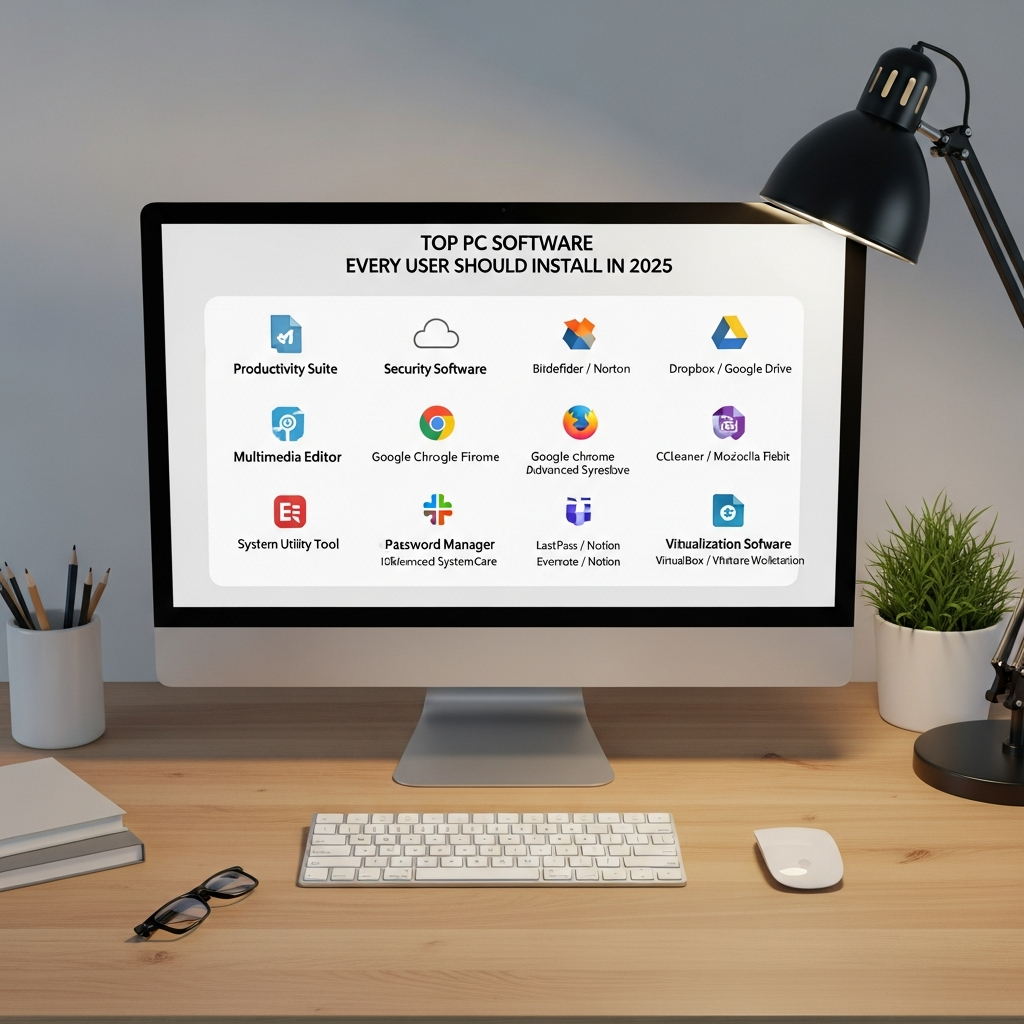
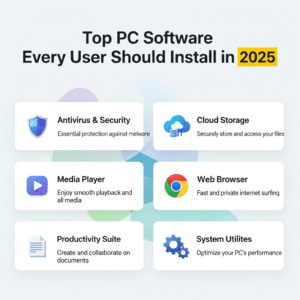
This guide cuts through the noise to reveal the essential PC software every user should install in 2025. These carefully selected programs cover security, productivity, media, utilities, and communication—transforming your Windows experience while keeping your system clean, fast, and secure. Whether you’re a student, professional, creative, or casual user, these tools will make your daily computing smoother and more efficient.
Essential Security Software
Windows Security (Built-in)
Before downloading third-party solutions, recognize that Windows Security (formerly Windows Defender) has evolved into robust, reliable protection. It provides real-time malware detection, ransomware protection, and firewall management without slowing your system or costing extra.
For most users, Windows Security offers sufficient protection when kept updated. It’s lightweight, integrates seamlessly with Windows 11, and doesn’t bombard you with upgrade prompts like free versions of third-party antivirus software.
Malwarebytes
While Windows Security handles everyday threats, Malwarebytes excels at detecting and removing stubborn malware, adware, and potentially unwanted programs (PUPs) that other tools miss. The free version provides excellent on-demand scanning when you suspect infection.
Run Malwarebytes monthly as a second-opinion scanner alongside Windows Security. This dual-layer approach catches threats that slip through single solutions. The premium version ($45 annually) adds real-time protection and scheduled scans.
Bitwarden Password Manager
Password reuse remains the biggest security vulnerability for average users. Bitwarden solves this by generating and storing unique, strong passwords for every account. It syncs across all your devices and auto-fills credentials securely.
Unlike browser-based password managers, Bitwarden uses end-to-end encryption and works across all browsers and apps. The free version includes unlimited passwords, while premium ($10 annually) adds advanced security reports and priority support.
Must-Have Productivity Software
Microsoft Office or LibreOffice
For document creation, Microsoft Office remains the professional standard. Word, Excel, and PowerPoint dominate workplaces and schools. Microsoft 365 subscriptions ($69.99 annually) include cloud storage and collaboration features.
Budget-conscious users should consider LibreOffice, a completely free alternative offering Writer, Calc, and Impress. While not identical to Office, it handles most tasks competently and opens Microsoft file formats reliably.
Notion or Obsidian
Modern note-taking has evolved beyond simple text files. Notion provides an all-in-one workspace combining notes, databases, project management, and wikis. Its flexibility makes it perfect for students organizing research, professionals managing projects, or anyone building a personal knowledge system.
Alternatively, Obsidian appeals to users preferring local storage and markdown formatting. It creates interconnected notes that build a “second brain” over time. Both tools offer free personal plans with optional premium features.
Adobe Acrobat Reader or PDF-XChange Editor
PDFs remain the universal document format. While Windows includes basic PDF viewing, Adobe Acrobat Reader offers superior rendering, form filling, and digital signatures. It’s free and handles complex PDFs that simpler viewers struggle with.
For users needing editing capabilities, PDF-XChange Editor provides annotation, text editing, and page manipulation in its free version—features Adobe charges for. It’s lighter than Adobe’s software while offering more functionality.
Media and Creative Tools
VLC Media Player
VLC Media Player plays virtually every audio and video format without requiring codec downloads. It’s lightweight, open-source, and completely free without ads or bundled software. VLC also streams online content, converts media formats, and even records your screen.
Its simple interface hides powerful features like subtitle synchronization, playback speed control, and audio enhancement. For media playback, VLC should be your default player—replacing Windows Media Player entirely.
GIMP or Paint.NET
For image editing, GIMP offers professional capabilities rivaling Photoshop—completely free. It handles layers, masks, filters, and advanced editing techniques. The learning curve is steep, but tutorials abound for users willing to invest time.
Casual users might prefer Paint.NET, which strikes a balance between Windows Paint’s simplicity and GIMP’s complexity. It’s free, loads quickly, and handles everyday photo editing tasks like cropping, resizing, and color adjustment effortlessly.
Audacity
Audacity dominates free audio editing. Record podcasts, edit music, clean up audio files, or create soundtracks—all without paying for expensive software. Its extensive effect library and plugin support rival professional tools.
The interface feels dated, but functionality is excellent. Musicians, podcasters, and content creators rely on Audacity for both simple edits and complex multi-track projects.
System Utilities
7-Zip
Windows’ built-in compression handles basic ZIP files, but 7-Zip supports dozens of archive formats including RAR, TAR, and its own highly efficient 7z format. It integrates into right-click menus and compresses files smaller than Windows’ native tools.
It’s completely free, open-source, and essential for anyone regularly downloading compressed files or needing to save storage space. Installation takes seconds and improves file management immediately.
CCleaner
Over time, Windows accumulates temporary files, broken registry entries, and digital clutter that wastes space and slows performance. CCleaner removes this junk safely, freeing gigabytes of storage and improving system responsiveness.
The free version cleans files and manages startup programs—reducing boot times significantly. Run it monthly to maintain peak performance. Avoid the aggressive upselling and stick with the free version for most needs.
TreeSize Free
Ever wonder what’s consuming your hard drive space? TreeSize Free scans your drives and displays space usage in visual, sortable formats. Quickly identify large files, duplicate content, and forgotten downloads eating storage.
This tool is invaluable when drives fill unexpectedly or when preparing to upgrade storage. It reveals hidden space hogs that Windows Explorer makes difficult to find.
Communication and Browsing
Google Chrome, Mozilla Firefox, or Brave
While Microsoft Edge has improved, alternative browsers offer advantages. Google Chrome dominates with extensive extension support and seamless Google service integration. Mozilla Firefox prioritizes privacy with strong tracking protection and open-source transparency.
Brave blocks ads and trackers by default while rewarding users with cryptocurrency for viewing optional ads. Choose based on your priorities: Chrome for compatibility, Firefox for privacy, Brave for ad-blocking and speed.
Discord or Slack
Modern communication extends beyond email. Discord started for gamers but now serves communities, study groups, and casual teams. Its free tier offers voice channels, screen sharing, and organized text channels.
Professional teams often prefer Slack, which integrates with business tools and offers superior search and file sharing. Both provide desktop apps superior to web versions, with better notifications and performance.
Installation Best Practices
When installing new software, download only from official sources—the software developer’s website or the Microsoft Store. Third-party download sites often bundle adware or modified versions.
Pay attention during installation. Many free programs attempt to install browser toolbars, change your search engine, or add unwanted extras. Choose “Custom” installation rather than “Express” to control what gets installed.
Avoid software bloat. Just because a program is free doesn’t mean you need it. Install only tools you’ll actually use. Every program consumes resources, startup time, and attention.
Keep software updated. Enable automatic updates where possible, especially for security-related programs. Outdated software becomes vulnerable to exploits and compatibility issues.
Building Your Essential Software Stack
You don’t need all the software mentioned here. Start with these priorities:
Security foundation: Windows Security + Malwarebytes + Bitwarden Productivity core: Office or LibreOffice + Notion or Obsidian + PDF reader Media essentials: VLC + GIMP or Paint.NET Utility basics: 7-Zip + CCleaner
This minimal stack covers security, productivity, media, and system maintenance without overwhelming your system. Add specialized tools like Audacity or Discord only when specific needs arise.
Over time, you’ll discover which programs you use daily versus those that sit idle. Uninstall unused software periodically to keep your system lean and responsive.
Conclusion
The right software transforms your PC from a basic computer into a versatile tool perfectly suited to your needs. The programs covered here—from security essentials like Bitwarden to productivity powerhouses like Notion, from media workhorses like VLC to system utilities like 7-Zip—represent the best free and affordable options available in 2025.
You don’t need expensive subscriptions or bloated suites to have a powerful computing experience. Most essential software is either completely free or very affordable, created by dedicated developers who prioritize functionality over profit.
Start by installing security fundamentals, then add productivity tools you’ll use daily. Explore media and creative software as needs arise. Your perfect software stack is personal—there’s no one-size-fits-all solution.
The investment of an hour or two installing and configuring these tools pays dividends every day through improved security, enhanced productivity, and a computing experience tailored precisely to how you work and play. Your PC is capable of remarkable things—give it the software to prove it.
Frequently Asked Questions
Is it safe to use free software, or should I always buy paid versions?
Many free programs are completely safe and professionally developed, especially open-source software like VLC, GIMP, and LibreOffice. The key is downloading from official sources—the developer’s website or verified app stores. Free software often matches or exceeds paid alternatives in quality. However, avoid programs that seem “too good to be true” or require suspicious permissions. Stick with established, well-reviewed software from reputable sources, and you’ll be perfectly safe using free tools.
How many programs should I install on a new PC?
Quality matters more than quantity. Start with 10-15 essential programs covering security, productivity, and media needs. Every additional program consumes system resources, creates potential security vulnerabilities, and clutters your experience. Install only software you’ll use at least monthly. You can always add more later when specific needs arise. A lean system runs faster, boots quicker, and experiences fewer conflicts than one loaded with dozens of rarely-used applications.
Will these programs work on both Windows 10 and Windows 11?
Yes, all software mentioned in this guide supports both Windows 10 and Windows 11. Developers maintain compatibility with current Windows versions to serve the widest user base. When downloading, the installer typically detects your Windows version and installs the appropriate variant automatically. If you’re considering upgrading from Windows 10 to Windows 11, you can confidently continue using these programs without reinstallation or compatibility concerns.
Can I use Microsoft 365 instead of installing Office on my computer?
Absolutely. Microsoft 365 (formerly Office 365) offers web-based versions of Word, Excel, and PowerPoint that run entirely in your browser. This approach saves local storage space and allows access from any device. However, the desktop applications offer more features, work offline, and perform better for complex documents. Many users combine both—using web apps for quick tasks and light editing while keeping desktop apps for serious work. Your Microsoft 365 subscription includes both options.